


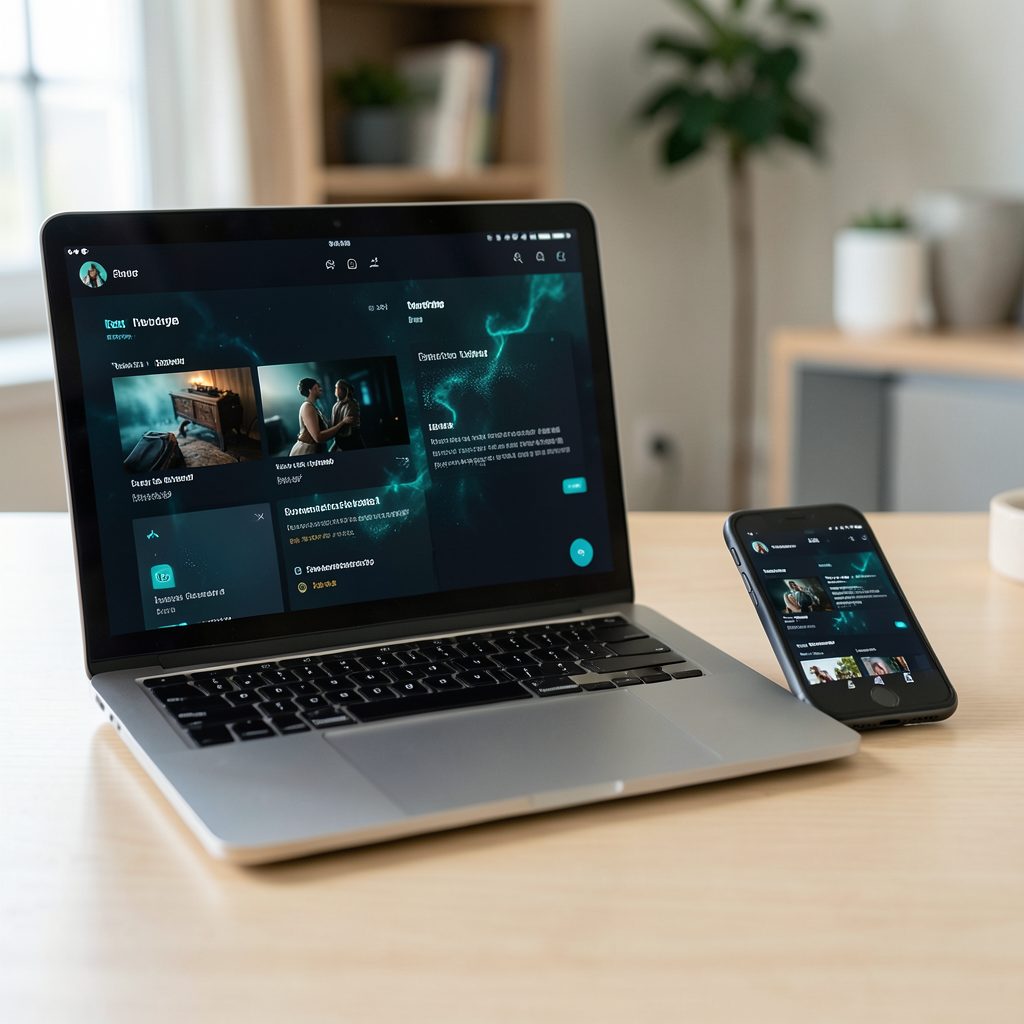
Popcorn Time’s backup and restore: saving your settings and watchlist
Popcorn Time turns torrent-based streaming into a straightforward library experience, with favourites, watchlists and playback preferences collected in one place. That convenience creates a risk: many forks store this information locally, so reinstalling the app, changing computers or replacing a device can also mean losing the setup you spent hours customising.
A dependable backup should preserve your watchlist, subtitle language, quality choices and other preferences without tying the process to one operating system. It should also distinguish between files worth keeping and disposable cache data. The exact procedure varies between Popcorn Time forks, but the same backup principles apply whether you use Windows, macOS, Linux, Android or an iPhone.
Why a backup matters
Watchlist data and playback settings are often stored in the same local configuration file. Deleting application data, resetting a device or moving to a different Popcorn Time build can therefore erase both in one move. A backup gives you a clean recovery path if a fork update changes the configuration format or a new installation cannot find the previous profile.
The need is particularly familiar in Australian homes where one person may browse on a Windows gaming PC, another uses an Android tablet and someone else casts to a television. A changing NBN connection, a mobile hotspot or a capped mobile data plan can also make re-downloading everything an expensive and frustrating arvo rather than a quick fix. Syncing the watchlist between devices saves time, but it cannot replace a separate copy of critical settings.
Forks add another layer of uncertainty. Names such as Popcorn Time, Popcorn Time CE and other community releases may use different folders, import functions and internal data formats. An update can also replace an application’s settings location. Back up before upgrading, especially when the developer has announced changes to providers, subtitles, casting or the update mechanism.
Find the files worth protecting
On desktop systems, begin by closing Popcorn Time and checking its application-data directory. Depending on the operating system and fork, settings may appear under %APPDATA%\Popcorn Time on Windows, ~/Library/Application Support/Popcorn Time on macOS, or ~/.config/popcorn-time on Linux. Some releases use a lowercase name, while others include the fork’s full name or store data under ~/.local/share.
On Android, the main configuration normally lives inside the app’s private internal storage. Android’s backup system may include some data, but it does not reliably capture every file used by every Popcorn Time fork. Root access can expose the files, although an exported watchlist or synchronised account is usually safer and easier to move. On iPhone and iPad, the app’s data remains inside its sandbox, so check for a watchlist export, Files access or iCloud/device backup support provided by that particular build.
The watchlist export option is worth checking before you need it. Some forks export a JSON file containing titles and watched status, while others offer CSV, OPML or a similar structured format. Keep the original export rather than converting it to a screenshot, spreadsheet or handwritten list. If the app must be reinstalled, a Popcorn Time setup guide can help configure the fresh installation before you attempt to restore its data.
Build a reliable backup routine
A useful desktop backup normally contains the current settings file, any exported watchlist and a note identifying the application name, fork, version and date. Preserve the original file extension because some imports are strict about the format.
Files and records worth saving
- The main settings file containing quality, subtitle and provider preferences
- A JSON, CSV or OPML watchlist export created by the fork
- Any synchronisation identifiers or account settings, kept separately from general preferences
- A short note recording the fork, version, operating system and installation source
A safe backup sequence
- Close Popcorn Time completely and wait for active downloads to stop
- Export the watchlist using the app’s built-in function, if available
- Copy the configuration folder to a temporary folder before changing anything
- Store the final bundle in an encrypted vault or private cloud folder with a dated label
Do not upload an unencrypted configuration bundle to a shared family drive. Some forks store login tokens or synchronisation credentials alongside ordinary preferences. Anyone with access to the file might be able to reuse those credentials. An encrypted archive is also preferable to a loose collection of files because it keeps the settings and watchlist together without exposing their contents.
Keep at least two copies in separate locations. One can live on the computer used for streaming, while another belongs in encrypted cloud storage or an encrypted USB drive. If you use more than one fork, maintain separate labelled bundles. Copying a configuration file into the wrong application directory can cause startup errors or make the app overwrite the imported data.
Restore settings without the drama
For the smoothest restoration, reinstall the same fork and version you used when creating the backup. Close the application, make a fresh copy of its current configuration and then replace or merge the old file. Keeping the newly created folder as a fallback prevents you from losing settings if the old file cannot be read by the new release.
Some forks provide an Import Watchlist command under a menu or settings page. Import the exported file there, select the correct provider where required and confirm that titles retain their watched status. If the application does not recognise the import, check whether it expects a different format or whether the file was saved in the Downloads folder under a name it does not scan automatically.
Desktop and mobile configurations are rarely interchangeable because they use different operating systems and storage conventions. A watchlist export is the best bridge, while manually re-entering a small number of preferences is usually quicker than forcing a desktop configuration into a mobile app. For multiple devices, use a fork with reliable Trakt, Plex or another supported synchronisation service. Test the synchronisation while both devices are online so you can identify sign-in or duplicate-entry problems before relying on it.
After restoring, open the watchlist, check a few watched and unwatched titles, and confirm the preferred subtitles, stream quality and casting settings. Restart the application once more to verify that it retains the changes. A backup is only useful when you know it can be restored, so this quick check is worth completing before deleting the original.
Keep your setup ready and lawful
Popcorn Time is a torrent-based application, and the legality of a particular download depends on the content and the permission attached to it. In Australia, obtaining or sharing copyrighted films and television programmes without authorisation may infringe the Copyright Act. A torrent’s source, licence status and your use of it matter; the polished interface does not make infringing content legal.
For legal viewing, Australia offers a strong range of licensed alternatives. Depending on your interests and subscription, these include ABC iview, SBS On Demand, Stan, Binge, Foxtel Now, Netflix, Disney+, Paramount+, Amazon Prime Video and YouTube. Public-domain films and openly licensed material are also available through archive and specialist collections. Comparing these services with Popcorn Time helps you separate convenience features, such as Chromecast, AirPlay and multi-device watchlists, from the legal status of the content being delivered.
A VPN can add privacy by encrypting traffic between your device and the VPN provider, and it may be useful on public Wi-Fi. The linked Popcorn Time VPN guide provides a starting point for comparing options. However, a VPN does not grant permission to download copyrighted material, does not guarantee anonymity and introduces another company that can potentially observe connection metadata. If speed matters, test servers in Sydney, Melbourne, Brisbane or Perth rather than choosing solely by price, while remembering that a distant server can produce slower transfers and buffering.
Casting support varies between forks and devices. Chromecast generally works through the Google TV or Google Home ecosystem, while Apple devices use AirPlay with an Apple TV or compatible television. A fork may support native casting, require a browser tab to be cast, or offer no direct casting at all. Test this before an evening movie night so you do not end up doing a bit of “she’ll be right” troubleshooting when the credits are about to roll.
Make your first backup now: close Popcorn Time, export the watchlist, copy the settings file and store both in an encrypted folder labelled with the fork name, version and date.