
Remote control setup for Popcorn Time on a media PC
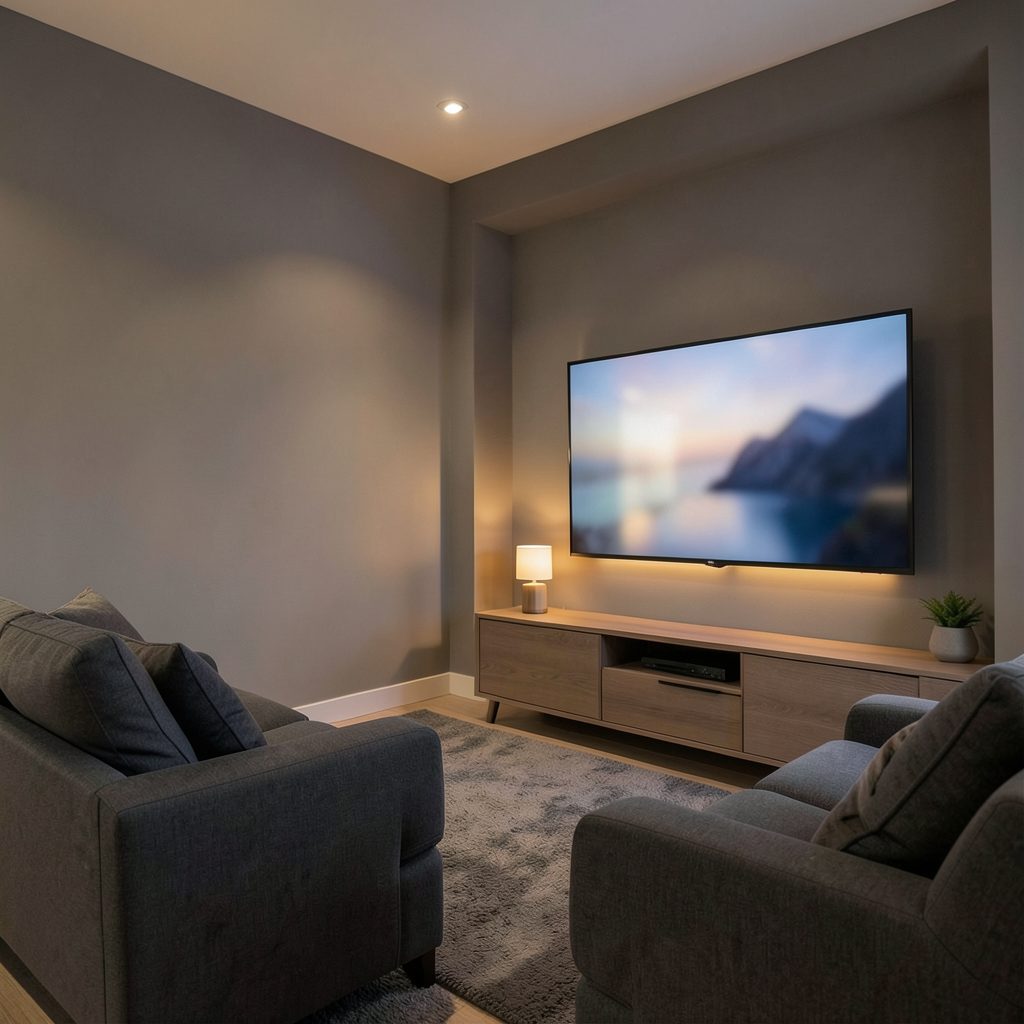
A media PC connected by HDMI can turn any television into a cinema-style movie system. Learning how to use Popcorn Time with a remote control on a media PC starts with matching the controller to the equipment rather than adding another streaming stick. The result should be a simple way to browse, play, pause and stop a torrent-based interface from the couch. A phone, tablet, television remote or keyboard can all do that job.
Popcorn Time has existed in several desktop and mobile forms, and independent forks continue to change their menus, casting support and update schedules. That matters when pairing a controller because a button labelled Cast, subtitles or full screen may sit in a different place from one release to the next. Plan around the exact build installed rather than relying on screenshots from another version.
Australian living rooms often combine a Foxtel set-top box, a Samsung or LG smart television and an NBN router with several phones. HDMI inputs, crowded apartment Wi-Fi and television-side volume controls are normal parts of the setup. The right remote method should work with that equipment without making everyday viewing more complicated.
Choose the best control method
Start by separating three jobs: controlling the on-screen menus, sending play and pause commands, and changing the television’s own volume or input. A network remote can handle the first two. A television or set-top-box remote may handle all three only if the media PC accepts its media keys. A dedicated infrared adapter covers the third option when line-of-sight infrared remains preferred.
Check what is already connected before buying anything. The media PC needs a live HDMI connection to the television, a stable route to the router and a way to receive the remote’s signals. In a Sydney, Melbourne or Brisbane apartment, 5 GHz Wi-Fi or Ethernet is usually more reliable than a congested 2.4 GHz network. A visible infrared receiver also needs a clear path from the couch.
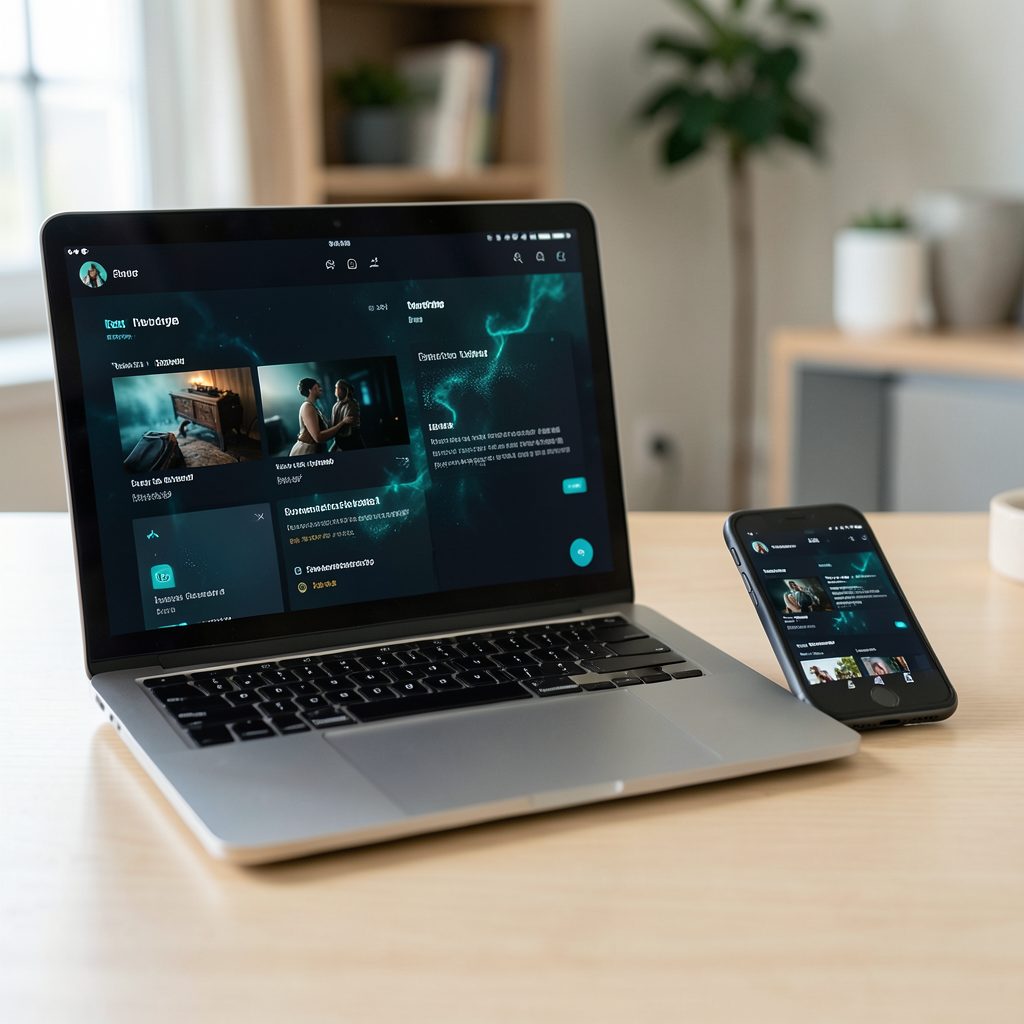
For most homes, a phone-based virtual remote is the simplest starting point because it can provide a touchpad, keyboard and playback buttons on one screen. A television remote is preferable where family members want one familiar handset. An infrared receiver becomes worthwhile in a dedicated media room where the computer sits inside a cabinet and screen mirroring is unwanted.
Prepare Popcorn Time for the media PC
Download the chosen Popcorn Time desktop build from its maintained project page, then confirm that it matches the media PC’s operating system. Windows, macOS and Linux releases have appeared across different Popcorn Time eras, while some current distributions are fork-specific. Check the publisher, release date and update notes before installing, and remove an abandoned copy rather than running an old executable indefinitely.
Open the app and set the interface language before learning its navigation. This interface language guide shows where the language option belongs in the referenced version, though a fork may move it. Choose the preferred subtitle language, turn off notification pop-ups where possible, and test whether the selected audio output is the HDMI device, the television or a separate soundbar.
Spend a few minutes with the mouse to identify the exact controls for back, play, pause, stop, full screen, subtitles and audio. Some builds expose useful keyboard shortcuts, while others respond only to on-screen buttons. Test an actual video because the interface may behave differently from the menus, and confirm that seeking works before settling in for a feature-length film.
Pair a phone or tablet as the remote
Install a reputable virtual-remote or remote-desktop application on the phone or tablet, then install its controller on the media PC. Both devices must be on the same home network, and the PC’s firewall may need permission for local discovery. Pair using the code shown on the television, create a separate profile if several people use the PC, and avoid giving the phone unrestricted access to the entire home network.
A good controller should offer a mouse or trackpad, arrow-key navigation, Enter, Escape and the essential playback keys. If the Popcorn Time menus are difficult to target, enable the controller’s hardware cursor mode and increase pointer speed. Test back and full screen repeatedly, since those actions often reveal whether the remote is sending a key press, a mouse click or an unsupported media command.
A Windows media PC can also run touch-oriented Android utilities inside BlueStacks, which can be useful for control panels that lack a desktop version. This BlueStacks setup guide uses Picasso as its worked example; the same installation principle applies when choosing a controller utility. Keep the virtual machine closed during playback if it consumes unnecessary CPU or introduces input delay.
Use television and receiver remotes
A television, Foxtel box or home-theatre receiver may already send play, pause and volume commands over Bluetooth or infrared. Program those media keys for the media PC’s USB receiver, or plug in a computer infrared receiver such as a FLIRC-compatible unit. The PC can then respond to the familiar handset without any software-based phone controller.
There is an important split in television control. The media PC can change the volume inside the movie, but the television or soundbar may still be louder. Many soundbars and receivers need their own volume adjusted on the handset, and changing the television source normally still requires the television remote. Choose a receiver with programmable keys and matching input labels so the correct device receives each command.
If commands work intermittently, move the receiver away from direct sunlight and heat, and check for a blocked infrared path. Wireless interference can affect Bluetooth mode, so re-pair the device or switch between transport modes in the controller software. Low controller latency is essential for menus; streaming quality still depends on the torrent source and the PC’s decoding performance.
Add casting and multi-device playback
Chromecast support varies between Popcorn Time forks. When the Cast button is available, pair the media PC with a Chromecast built into the television or with a small dongle, then choose the television as the playback screen. If there is no native cast option, connect the computer by HDMI or use the operating system’s display-mirroring tools, testing the chosen file because every interface and codec may not behave in the same way.
AirPlay is another route on macOS and on televisions with AirPlay 2. It normally mirrors the desktop rather than acting as a separate Popcorn Time remote, so a phone can select the Mac as the receiver while the virtual remote remains the controller. Keep the phone unlocked, confirm that the correct display is selected and close overlays that might black out the mirrored screen.
Multi-device playback has limits. Most desktop Popcorn Time builds provide one active playback session, and a second controller does not create a second stream or synchronised episode. For family viewing, use the media PC as the single source and control it from several handsets if needed. Licensed Australian services such as ABC iview, Netflix, Disney+, Stan, Binge and Foxtel generally offer their own official cast and multi-screen workflows.
Run a dependable playback checklist
A short rehearsal prevents a remote-control problem from interrupting a film night. Work through these checks after installing the application and the selected controller:
- Confirm the HDMI input, television audio output and controller connection before opening a movie.
- Keep Popcorn Time and its remote utility updated from their maintained sources.
- Use Ethernet or 5 GHz Wi-Fi when menu response stutters or casting loses the stream.
- Pair the controller with a PIN and lock the PC’s local-network permissions appropriately.
- Test play, pause, subtitles, full screen, back and seek from the couch.
- Store infrared receivers away from direct sun, heaters and crowded cables.
- Use only films, episodes and files you own or are authorised to access.
Australian law makes this last point important. The Copyright Act 1968 provides the legal framework for copyright protection, and Australian courts have granted injunctions against operators of online piracy services. Using a VPN is generally legal in Australia, but it does not make unauthorised downloading, sharing or streaming lawful, and it does not remove the risk of copyright enforcement.
When a button fails, first identify whether the failure is in the remote, the app or the television. Change one setting at a time: reconnect the network, resend the pairing code, restart the controller utility or test a different playback shortcut. Keep a USB keyboard nearby for menus, and check the system log if a media key opens the wrong screen.
Set up the media PC this weekend: connect it by HDMI, install the selected controller, pair it with a PIN, and run the checklist from the couch. Once the controls are reliable, save the working configuration and keep the licensed viewing apps ready on the same television for everyday Australian home viewing.