

A practical guide to Popcorn Time trailers
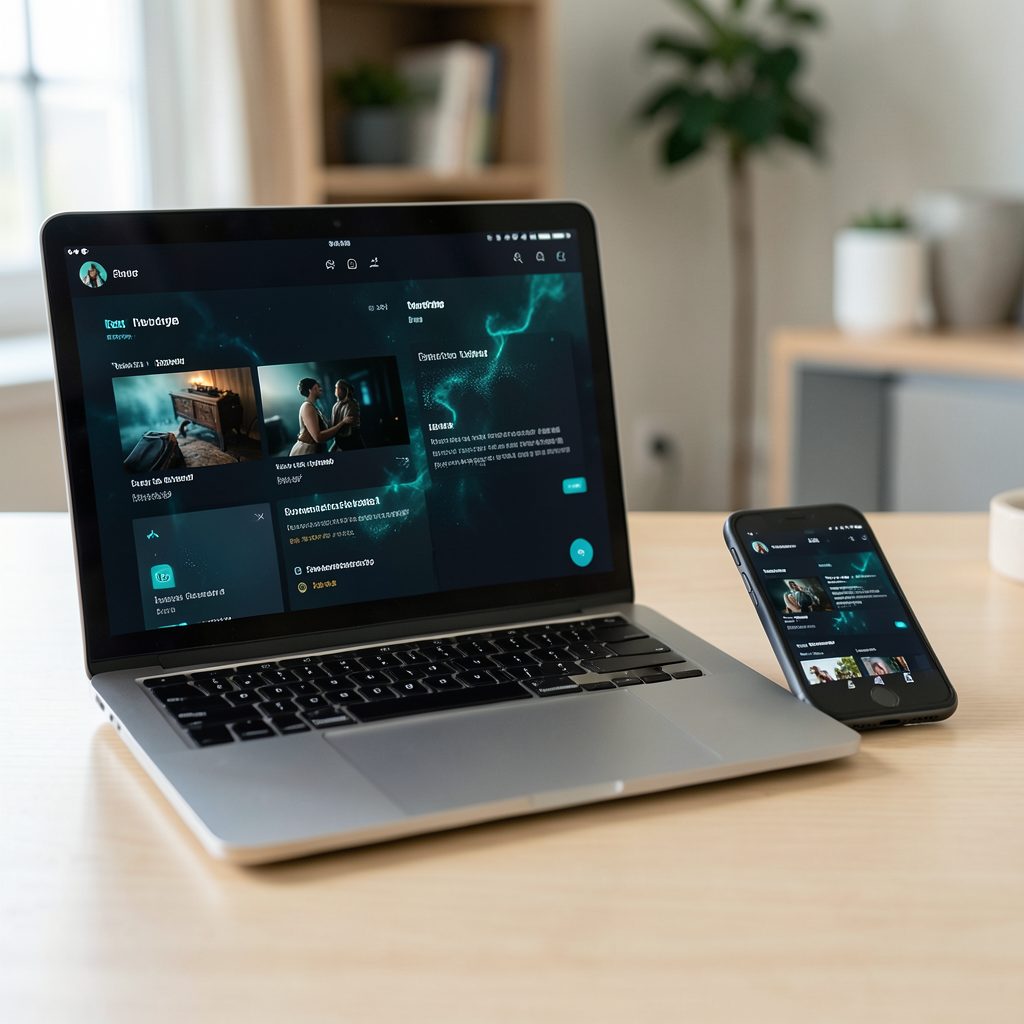
Popcorn Time’s built-in trailer feature gives you a quick way to judge a movie or television series before starting a larger download. Open a title’s information screen and you can usually find a short preview alongside details such as the synopsis, year, genre, rating, and cast. The exact button varies between Popcorn Time forks, so a little familiarity with your chosen version helps.
Watching movie trailers is also useful when several similar titles are waiting in the catalogue. A search for “Carrie”, for example, can bring up more than one adaptation, while a series may appear under different seasons or individual episodes. Checking the release year, cast, and synopsis prevents the wrong preview from influencing your choice.
A smooth routine is simple: locate the preview, check how playback is handled, and confirm that the source is legitimate. The same steps work on a laptop in Sydney, a shared tablet in Brisbane, or a television setup in Melbourne.
Find the trailer control on a title page
Open the main catalogue and choose a film, or switch to the television-series view if your fork separates the two. Selecting a title usually opens a details panel with its overview and media options. Look for a button labelled Trailer, Preview, or a small play icon beside the title. Some builds place it beside the download controls; others position it under the overview or cast information.
If the preview control is hidden, widen the details panel or scroll within it instead of selecting a nearby download option. On a small laptop screen, secondary buttons may collapse to save space. A phone or tablet in portrait orientation can hide them as well, so rotating the device or enlarging the window may reveal the control. The layout is not standardised, but previews are generally grouped with a title’s viewing options.
Search films and series without second-guessing
Use the search field with a title and release year whenever remakes or adaptations could cause confusion. Searching for an Australian film such as The Castle or The Sapphires can produce international versions alongside the local release, and comparing the credits helps confirm which trailer you are about to watch. Genre and language filters are useful for Australian audiences who want local productions, documentaries, or particular subtitled imports.
For television, confirm the season before expecting a preview of a specific episode. Depending on the fork, series entries may be organised by season or listed as separate episodes, and their preview coverage can differ. Cast familiarity can also guide you through Indian-language titles; this Rajesh Hamal retrospective offers context on a familiar actor when you want to explore more of his screen work.
Check the app before previewing
Give the application a quick check before expecting instant playback. Confirm that your internet connection is working, since some forks open an embedded video while others hand the request to your browser or a configured video service. A stable connection matters even for a short preview because the player still has to load the page, resolve the clip, and buffer its opening seconds.
If you want the Time4Popcorn variant, use the Time4Popcorn download page and compare the listed operating systems with the device you actually own. Avoid old mirrors and installers offering unrelated extras, since they may be outdated or bundle unwanted software. Keep the application and browser updated, and check your firewall or pop-up settings if a preview opens externally but remains blank.
Know what happens when you press play
Press the trailer control and observe where the clip appears. An embedded player keeps the preview within the app, while another fork may open your default browser or an external service. This difference affects both data consumption and privacy: an external page can load advertisements, analytics, and additional video requests. Close an unnecessary tab after the trailer finishes rather than allowing autoplay to continue.
Basic playback controls usually include play or pause, volume, and a progress bar. If they are not immediately visible, click the player or move the pointer and wait for the interface to appear. You can then skip a section you have already seen or pause while checking the title details elsewhere. Some previews offer no visible timeline, so cancelling may be the only available control.
Check the audio and subtitles before deciding whether a preview is useful. Dialogue, music, and sound effects all contribute to a film’s tone, and a clip without captions may be difficult to follow in a noisy household. Australian cities such as Adelaide and Perth also have widely differing household internet conditions; fixed-line connections may be fast, while some mobile and regional plans impose data limits. A single high-definition trailer can consume tens or hundreds of megabytes, and repeated buffering can add more.
Cast a preview to your television
A television makes dialogue, performances, and visual effects easier to assess than a phone screen. If your build exposes a Cast control, open it and select a compatible Chromecast connected to the same Wi-Fi network. The exact icon and device-selection menu depend on the fork and operating system, but the underlying process is to choose the television before the preview starts.
Apple TV users can mirror a supported computer or mobile display instead. This AirPlay setup guide explains the receiver requirements and the basic screen-mirroring steps. Mirroring sends the computer’s picture to the television rather than installing a dedicated Popcorn Time channel, so menu notifications and other visible elements may appear alongside the trailer.
Casting and mirroring can become costly on a capped connection, particularly when several people watch previews on mobile data. Australian households with fixed-line broadband often benefit from unlimited local plans, but mobile hotspots and some regional services remain metered. Check your allowance before a long preview session, use Wi-Fi where available, and close the player when the television is no longer displaying it.
Keep browsing lawful and privacy-conscious
A convenient preview button does not change the legal status of the material behind it. Australia’s Copyright Act 1968 protects films, television programs, sound recordings, and associated material. In 2015, the Federal Court ordered 15 piracy websites operating outside Australia to block access to infringing content, and further enforcement measures continue to evolve. Using a torrent application does not create permission to download or redistribute protected copies.
The right to share a complete work differs from the right to make a particular use of a short clip. A trailer can still be copyrighted, and finding it through an unauthorised catalogue entry does not automatically make its use lawful. Prefer previews published by the studio, broadcaster, or an established video service. Australian viewers can also discover local programming through official channels such as ABC iview and subscription services including Binge, Disney+, and Netflix.
A VPN may change the location shown to a website, but it does not grant permission to copy protected material. Some free VPN services collect traffic data or display advertising, which can undermine the privacy benefit people expect. Keep the application, browser, and security software current, and avoid entering personal details into unofficial trailer pages or download prompts that appear without a clear reason.
Build a reliable trailer-watching routine
A short preview works best when it confirms the correct version rather than simply starting at the first click. Look at the year, runtime, rating, and cast, then read enough of the synopsis to understand the premise. For a series, confirm which season or episode the preview represents. This habit is especially helpful with Australian releases that may arrive on local platforms later than international listings.
Sound and access matter as much as the image. Turn on subtitles when needed, adjust the volume before casting, and check whether the preview actually plays inside the application. If an external window opens unexpectedly, close it after watching and revisit the source through an official channel. These small checks keep the experience predictable without requiring a large download.
- Check the title, release year, and classification before playing, especially when remakes, compilations, or several series seasons share a name.
- Use the synopsis and cast to confirm the version, then enable subtitles when the trailer’s dialogue is difficult to follow.
- Stay on Wi-Fi for casting or repeated previews, and switch to a lower quality setting when using a capped mobile plan.
- Prefer trailers from studios, broadcasters, and established video services, and decline any additional file or installer you did not intentionally choose.
Open Popcorn Time, select a title that has caught your attention, and play its official preview. Confirm the details, check the sound, and decide whether the story deserves a place on your next film night.