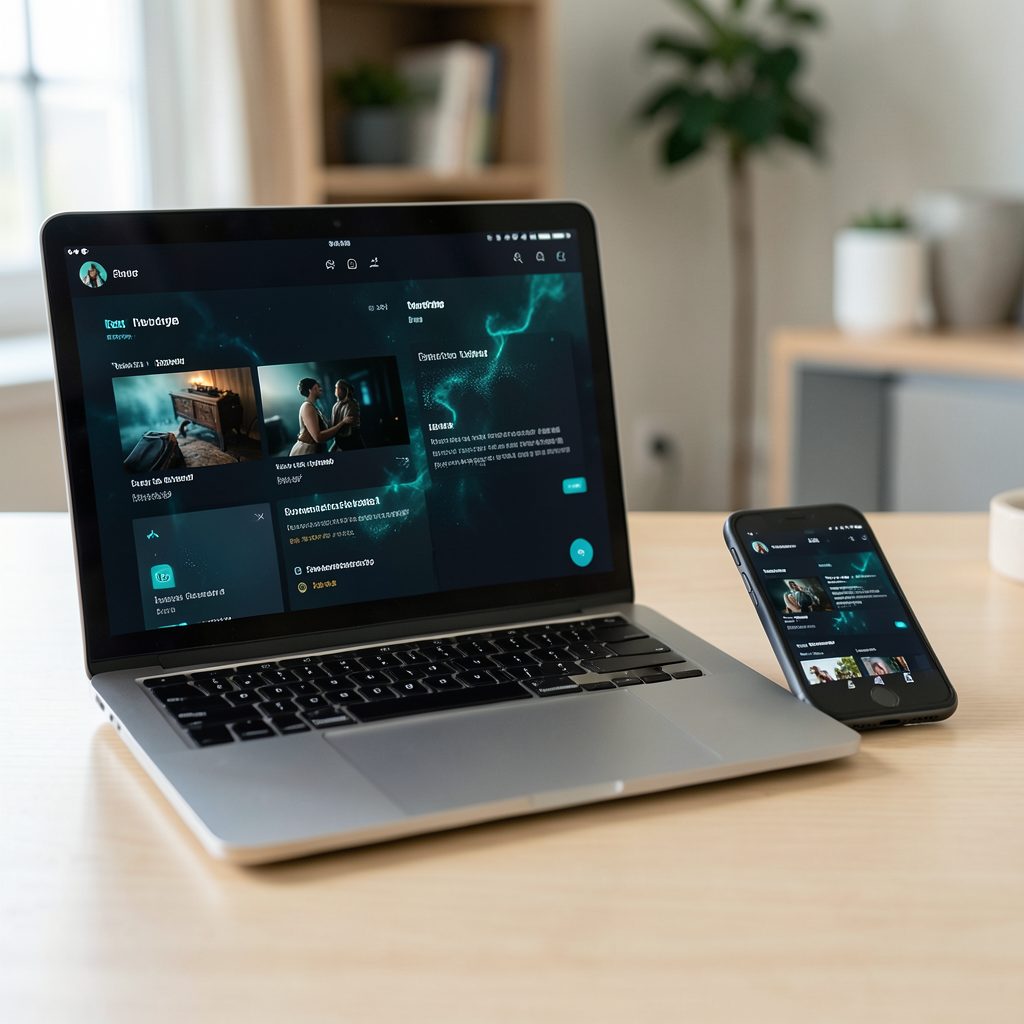
Playing Popcorn Time movies on an older TV with component inputs
Older sets can still make a good second screen for Popcorn Time movies, particularly when they have red, green and blue RCA sockets instead of HDMI. Component video carries three separate analogue picture channels, and stereo sound uses a separate pair of red and white sockets. It is an old-fashioned arrangement, but it suits the CRTs and early flat panels still found at garage sales and flea markets in Melbourne, Sydney and Brisbane.
The job becomes simpler once the video and audio routes are understood. You need a suitable output from the computer, the correct cables, a television input setting and a few compatibility choices for PAL video. Working through those choices avoids the usual mix-ups with video formats, aspect ratios and analogue audio.
What component inputs actually support
Component is not another name for composite. On a television with component inputs, connect green to Y, blue to Pb and red to Pr. Composite uses one yellow socket for the entire picture. A lead sold as HDMI-to-composite normally cannot drive Y, Pb and Pr, so check the converter specification rather than trusting a generic RCA label on the box.
Most Australian analogue television sets use PAL-B and display 576i video at 50Hz. Component can also carry 480i, 480p, 576i and 576p, depending on the equipment, but it cannot turn a 1080p film into a genuine high-definition picture. A computer with HDMI or DisplayPort will normally require an active HDMI-to-component converter that also supplies stereo analogue audio.
Prepare the source and choose a Popcorn Time build
Before buying a cable, check what video output the source computer actually provides. Many older desktops have VGA, and a few have component sockets; modern laptops usually offer HDMI or USB-C. USB-C is not automatically a video output: a charging-only adaptor will not drive the television. Confirm that the computer, adaptor and converter can negotiate a resolution and refresh rate the component television accepts.
Popcorn Time has historically been distributed for Windows, macOS and Linux, although individual forks and their supported features differ. Install the application from a trustworthy source and review the available versions against the features you need. The fork comparison guide covers maintenance, bundled players and casting support. If the selected build supports local files, test one you own before relying on network streaming or a wireless casting target.
Make the connections and check the hardware
Switch off both devices before changing leads. Run the green, blue and red leads from the converter to the television’s Y, Pb and Pr sockets, following the labels beside the input panel. Connect the converter’s white and red audio outputs to the television’s left and right audio sockets. On some sets the red socket changes meaning between component and composite, so read the manual before inserting a plug.
Before switching on, check these essentials:
- HDMI-to-component converter with separate stereo audio outputs
- Three colour-coded component leads and two RCA audio leads
- Correct video-capable adaptor for the source computer
- Converter power supply suitable for Australian 230V mains
Keep these items nearby while you work:
- Remote controls for the television and converter
- USB-C or HDMI adaptor with confirmed video support
- A lawful test film stored on the computer
- Phone or tablet for checking converter settings
Set the picture and sound for Australia
Choose PAL rather than NTSC on the converter, and use 576i at 50Hz for the safest match to an Australian analogue set. A 576p setting is acceptable when both the converter and television support it. Movies shot at 25 frames per second often display smoothly this way; a mismatched 60Hz NTSC mode is a common reason for rolling or unstable pictures.
On a 4:3 television, preserve the film’s intended aspect ratio and use letterboxing for a widescreen title rather than stretching it across the panel. Older CRT sets may need geometry, convergence and overscan controls adjusted by hand. For sound, choose stereo or the correct left-right mode, then check the television’s own volume and mute settings before changing anything inside Popcorn Time.
Troubleshoot common playback problems
A black screen with sound usually means the television is on the wrong input, the converter is receiving video but sending its picture to composite, or the source resolution is unsupported. A picture without sound points to the separate RCA audio connections, muted television audio or an application output routed to the wrong device. Test the source on its own monitor to separate computer problems from cabling problems.
Rolling, bending or flashing images usually indicate a PAL and NTSC mismatch. Swap the blue and red picture leads only when the manual confirms their assignments, and inspect every connector for bent pins. Green colour casts, missing detail and unstable vertical lines can also come from a poorly made converter or a damaged lead.
Freezing and stuttering require a different check. Confirm that the film is stored locally, close other demanding applications and inspect the converter for overheating. If network playback is the only source of trouble, compare it with local playback and the casting method. Updating the selected build and testing a different converter can narrow down an old software or hardware fault without altering the television.
Consider casting with Chromecast and AirPlay
Chromecast and AirPlay can simplify control, but neither removes the need for a suitable television connection. A modern Chromecast or an Apple TV normally outputs HDMI, so it still needs an HDMI-to-component converter and analogue audio leads. Some older Chromecast devices included composite video, which is a different connection and may produce a softer picture. Casting also lets a phone or tablet act as a remote while playback appears on the television.
The Popcorn Time fork may expose a Play on TV option, although casting support differs between builds and versions. The casting device and source computer generally need to share a local network, and some routers prevent guest devices from communicating with one another. A newer television with its own applications follows another route: the Samsung Smart TV guide explains installation on a supported Samsung set. A component-only television cannot run that interface by itself.
Use the setup lawfully and start watching
Using a torrent application does not grant permission to copy or share films. Downloading unauthorised copies can infringe Australian copyright law, including the Copyright Act 1968, and rights holders can pursue legal remedies. For straightforward viewing, Australian audiences can compare Fetch, Foxtel and other licensed platforms with the content they actually want. The application, the source of each file and the right to watch it are separate questions.
A VPN encrypts traffic between your device and its provider and can conceal your internet address from the destination site, but it does not make unauthorised sharing lawful. The provider may still retain connection records, and your internet service provider can still observe that you connected to it. Use a reputable service with clear logging and privacy policies. For additional background on online access and privacy, H2O Online offers a useful starting point, while provider policies should always be checked directly.
Make the setup a deliberate choice now: identify the computer’s video output, buy the correct converter, label the component leads and test a film you own before relying on the system for a movie night. Keep the software current, use only lawful files, and review the privacy settings of any VPN you choose. Now connect the leads, select the component input and settle in for a lawful watch on the old telly.